HandyNation
FeaturesPricingCustom AppDocsSupportPartnership
Log in
Docs/Multi Language
  • Getting Started

    • Account Setup & Installation
    • Manage Subscription
  • Team Setup

    • Manage team member
    • Team member login
    • Permission sets
  • CRM

    • Manage user record
    • Advanced search
    • Tag a user
    • NationBuilder Tags
    • NationBuilder list
    • User actions
    • Nearby (proximity list)
  • Canvassing

    • Create canvassing list
    • Canvassing on the field
  • Events

    • Events
    • QR based RSVP
  • Multi Language

    • Select app language
    • Customize language text
  • Donations

    • View Donations
    • Add donation
DashboardUpdated on 11 August 2026

Customize language text

Table of Contents

  1. Custom language text
  2. Personalize the text

Custom language text

Open Language in the dashboard. Each language is a column — EN, ES, FR and Custom — and each row is one identifier, one piece of text the app shows. Use the search box to find a string by identifier or by its text.
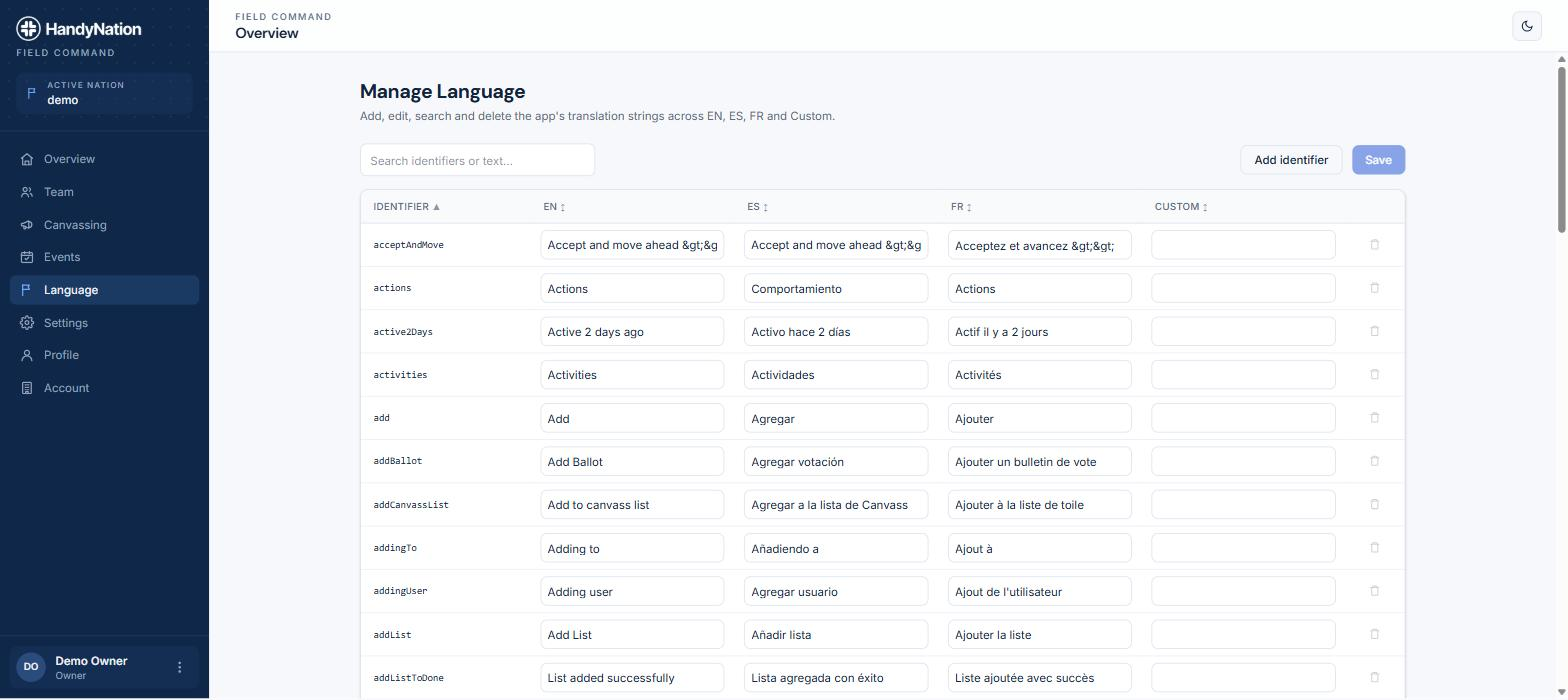
The Language page in the dashboard
  1. 1
    Open the Language page from the dashboard navigation.
  2. 2
    Use the name field at the top of the custom column to name your language.
  3. 3
    Edit the text in that column, row by row.
  4. 4
    Save.

Personalize the text

The shipped languages can be edited the same way — useful when your organisation calls things by its own names. Change any field on the Language page and save.

Note: Close and reopen the field app to pick up language changes.

PreviousSelect app languageNextView Donations
HandyNation

HandyNation streamlines field operations — real-time sync, efficient canvassing, and customizable permissions — built for seamless NationBuilder integration.

Quick Links

  • Home
  • Features
  • Pricing
  • Custom App
  • Docs
  • Blog

Connect

  • Facebook
  • Twitter
  • Instagram
  • LinkedIn

Stay Updated

© 2026 HandyNation. All rights reserved.|
Privacy PolicyTerms of Services