QR based RSVP
How QR based RSVP works
QR codes are generated per event, and only for events you have selected in the dashboard. Once an event is selected, everyone who RSVPs is emailed a code you can scan on the day.
Open Events in the dashboard and add the event you want QR codes for.
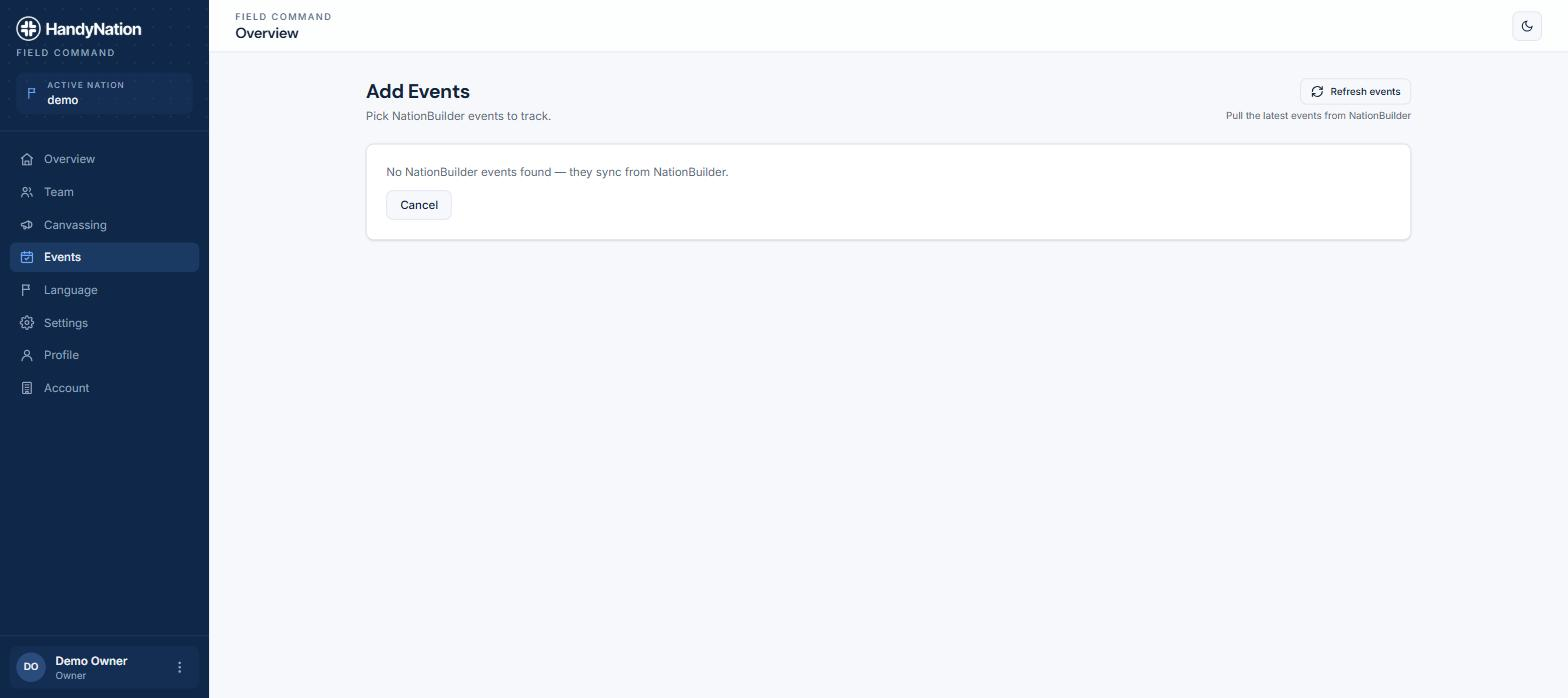
Pick the site the event was created under, then the event itself, and save.
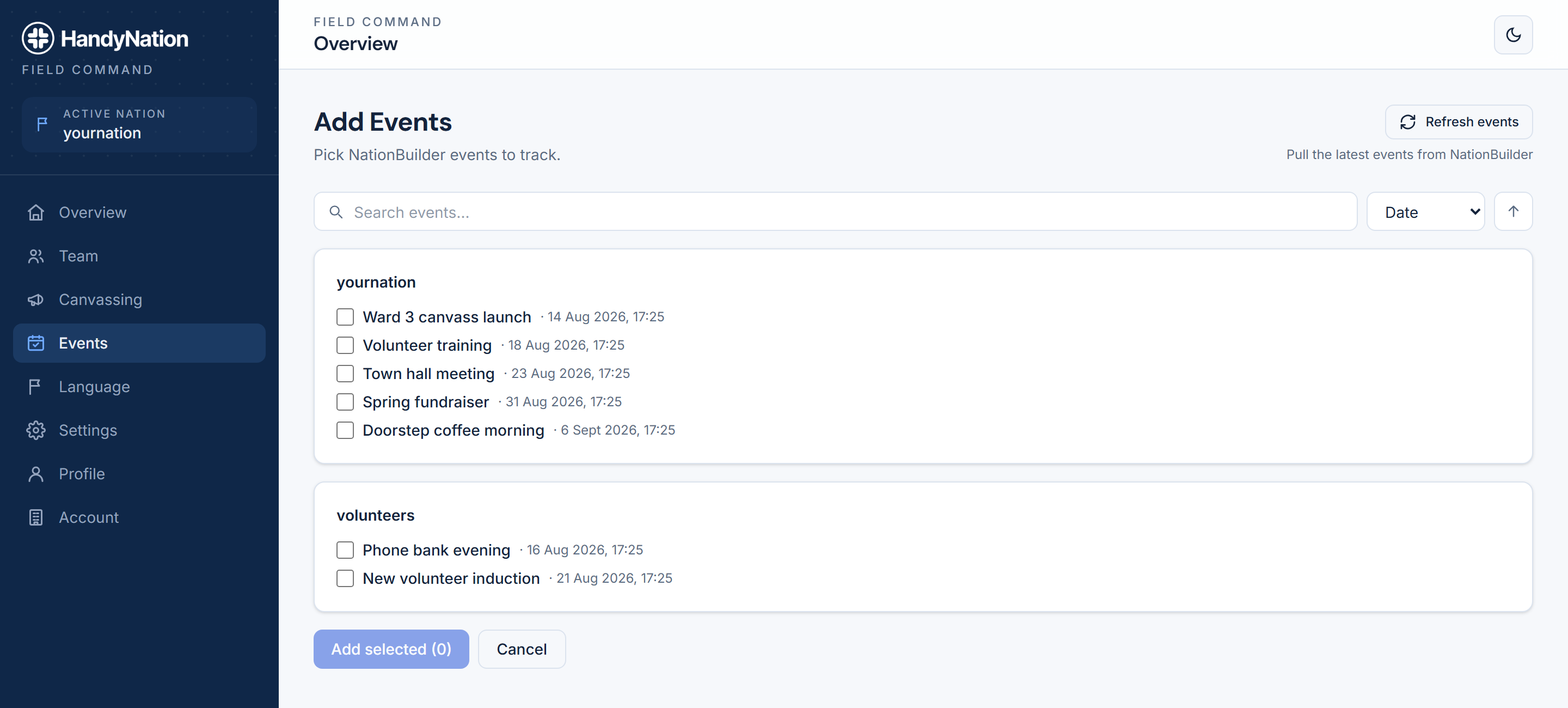
Anyone RSVPing from the field app now gets a QR code automatically.
Covering RSVPs made on your website
People who RSVP on your NationBuilder site rather than in the app need one extra step. In the NationBuilder control panel, open the event and go to Event Settings → Advanced, then set the RSVP tagging option to `remaining_hn_qr_code`.
From then on, website RSVPs are emailed a QR code as well.
RSVP using QR scan
In the field app, open Events, pick the site and then the event, and open its RSVP list. The scan action sits in the top right.
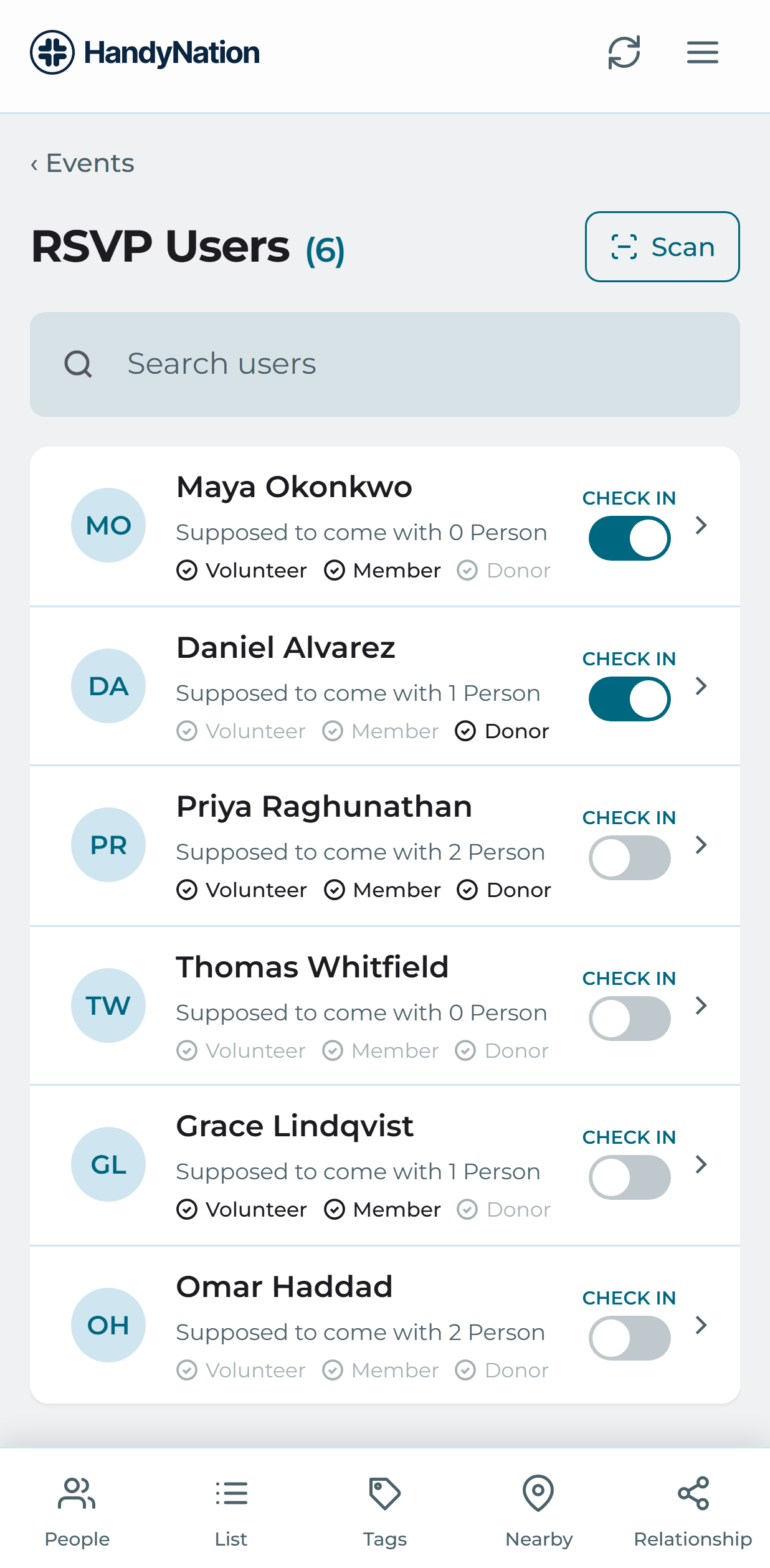
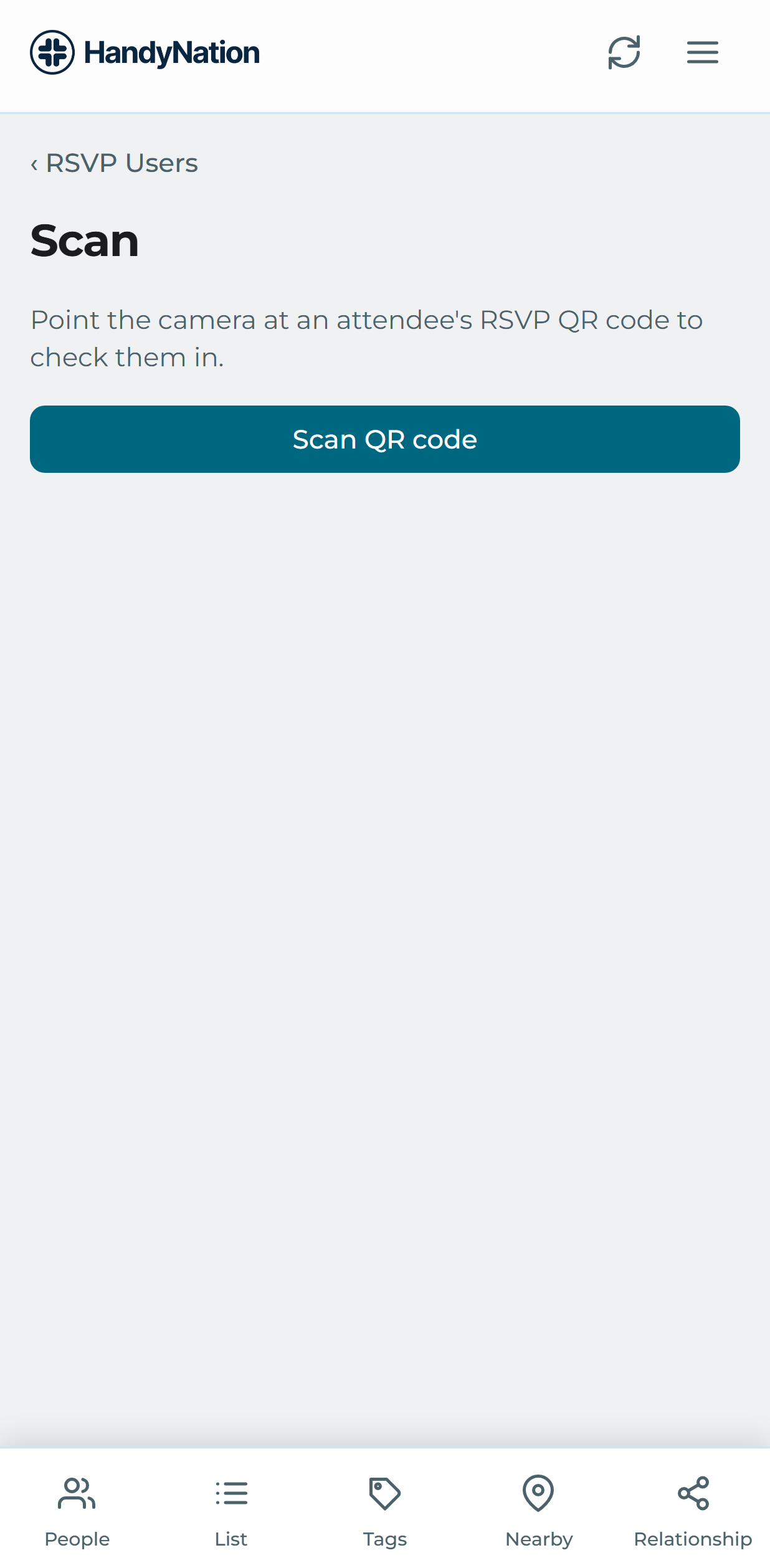
Scanning the code from the attendee’s email opens their RSVP directly. Submit it and they are checked in.