Permission sets
Permissions are set per staff member on the Team form. They are grouped into the same sections as the navigation they control, and each section has a master toggle: turn the section off and everything inside it is irrelevant.
Two polarities are in play, and mixing them up is the usual source of confusion. Show and Allow permissions are off until you grant them — the staffer sees or does nothing until ticked. Hide permissions are also off by default, but granting one takes something away. Owners and admins bypass all of it and always see everything.
Where permissions live
Open Team, edit a teammate, and scroll to Access & permissions. Each section below is one card with a master toggle and a count of the options inside it; turn a section on to reveal its options.
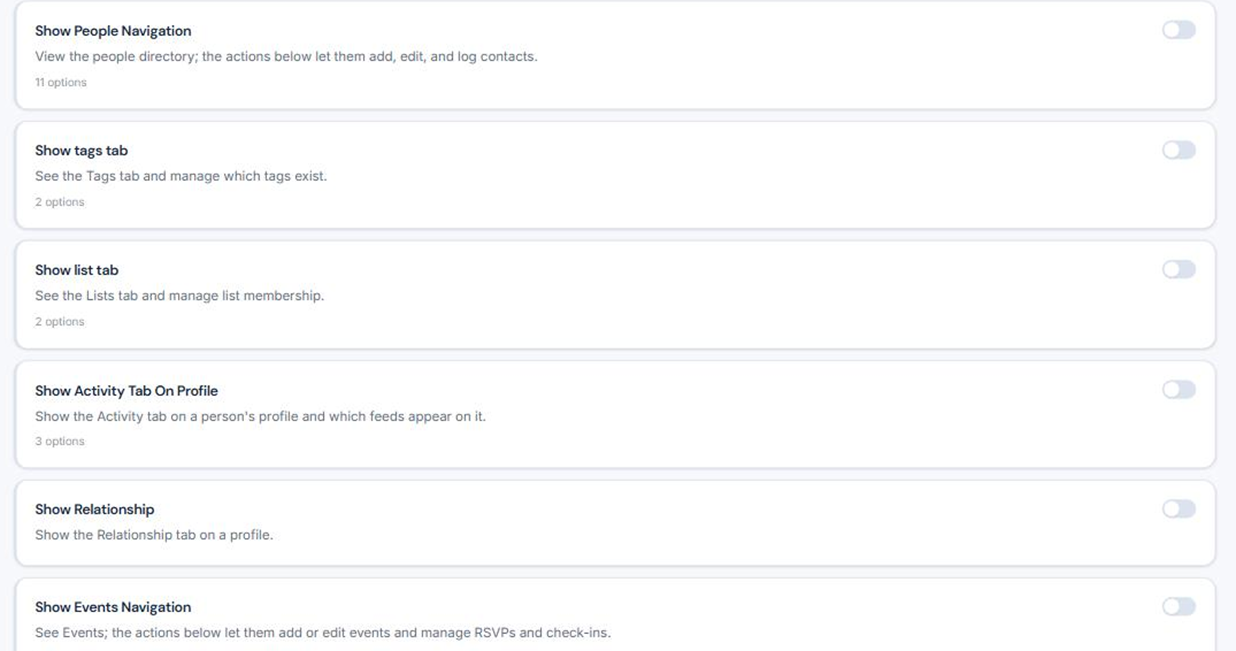
Show People Navigation
The master toggle reveals the People tab in the field app. Everything below only applies once it is on.
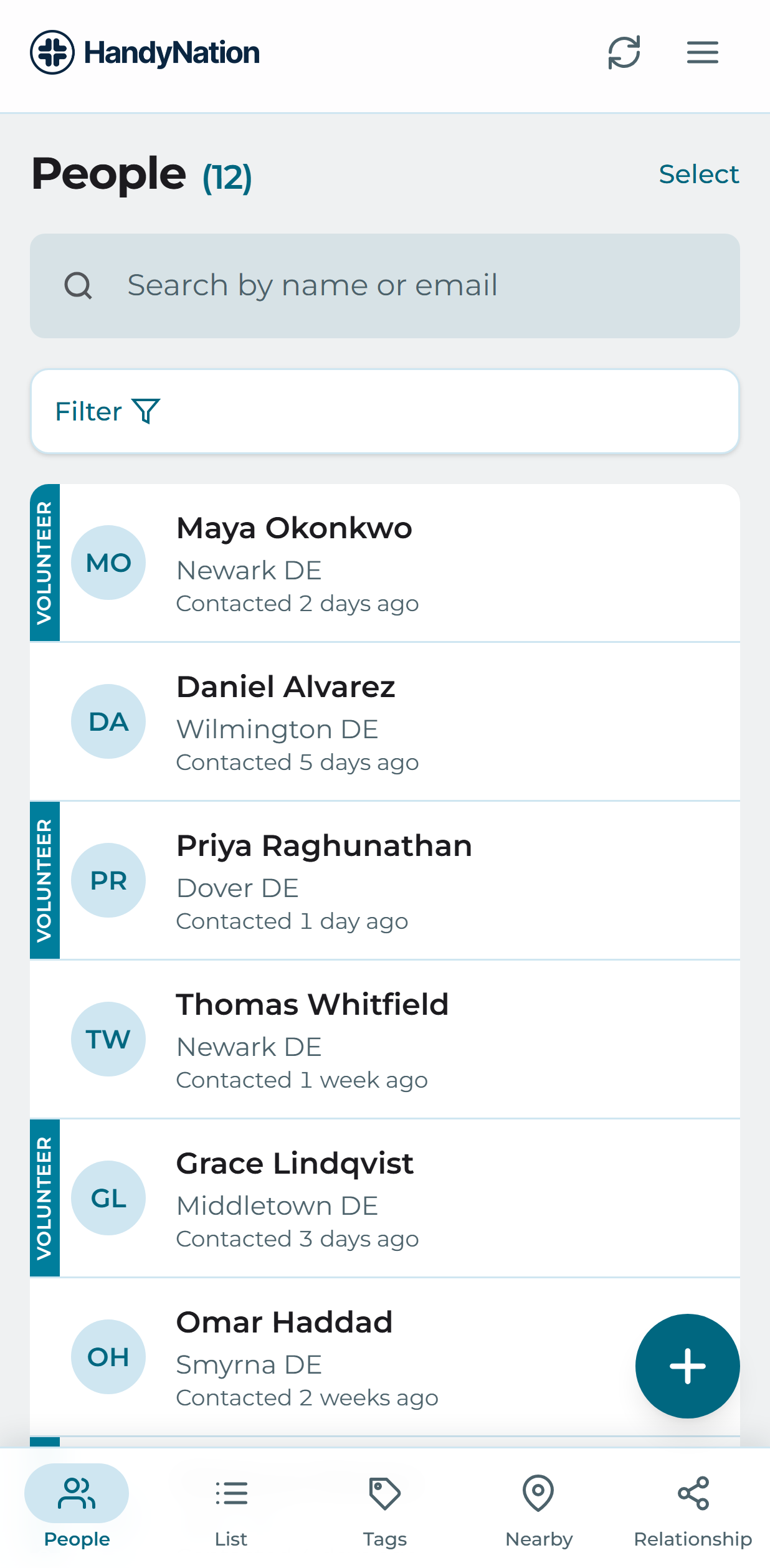
- Allow add user Adds the create-person action to the People tab.
- Allow edit user Lets the staffer change an existing person record.
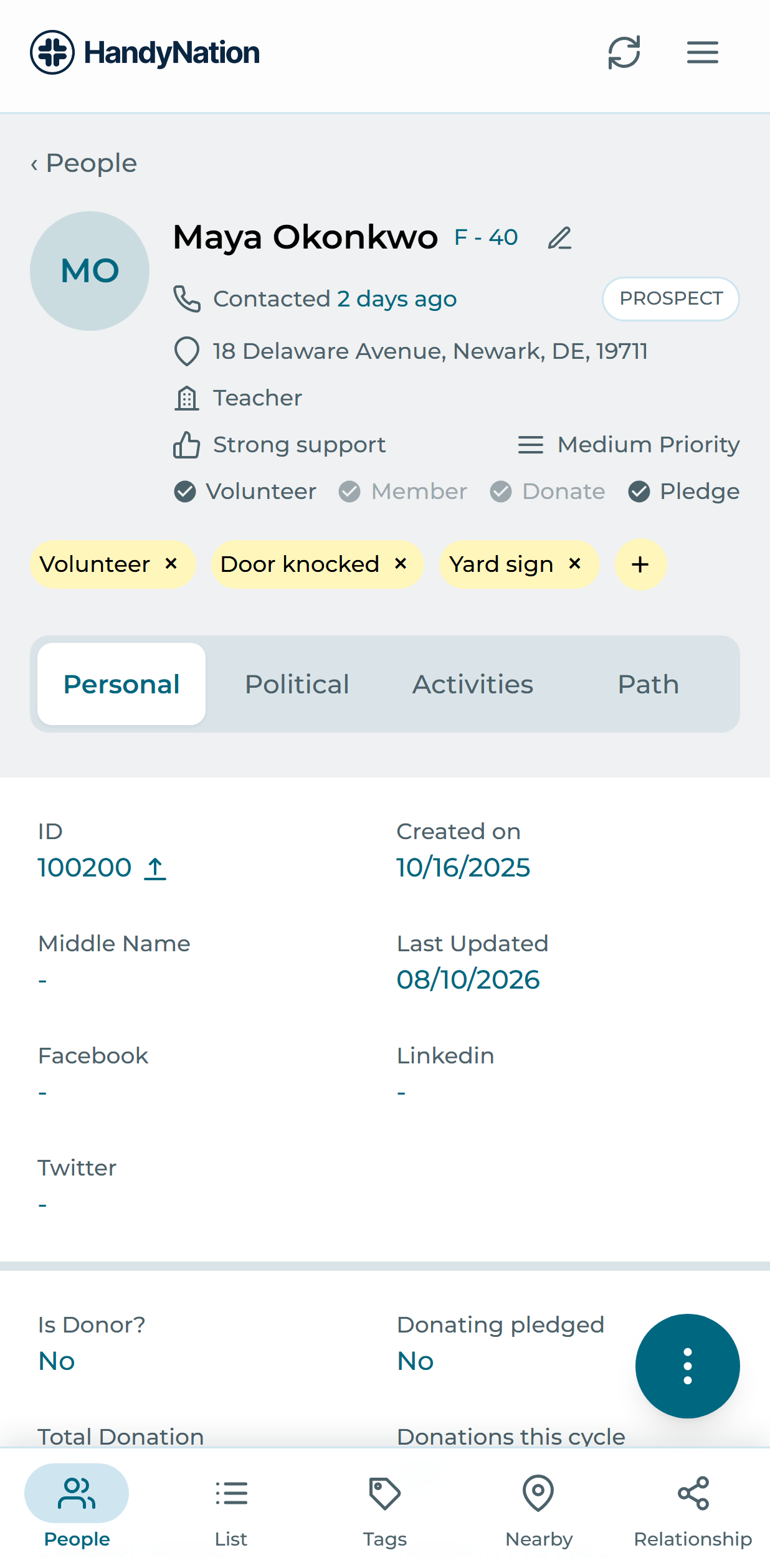
- Allow to log contact Shows Log Contact in the actions menu on a profile.
- Allow event RSVP Lets the staffer RSVP somebody to an event from their profile.
- Allow to sign petition Lets the staffer sign a petition on a person’s behalf from their profile.
- Allow survey Lets the staffer record a survey response from a profile.
- Allow to create canvass list Lets the staffer add a profile to a canvassing list.
- Allow to add ballots Lets the staffer add ballots to a profile.
- Allow to add membership Lets the staffer add a new membership to a profile.
- Allow to edit membership Lets the staffer change an existing membership.
- Allow log donations Shows Log Donation in the actions menu on a profile.
Show tags tab
Reveals the Tags tab. Choose whether the staffer sees all tags in your nation or only the ones you pick.
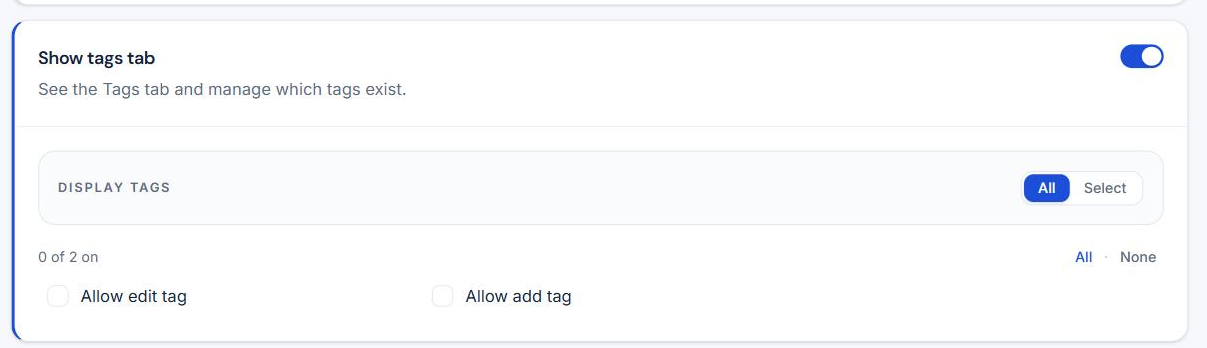
- Allow add tag Lets the staffer put a new tag on a profile.
- Allow edit tag Lets the staffer remove an existing tag.
Show list tab
Reveals the Lists tab, again with an all-or-selected scope so a staffer can be limited to the lists that concern them.
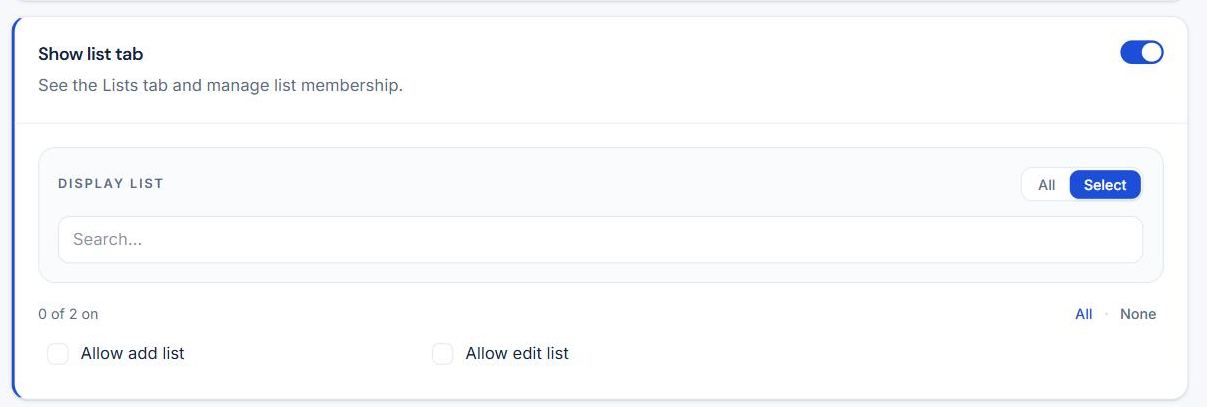
- Allow add list Lets the staffer create a new list.
- Allow edit list Lets the staffer rename an existing list.
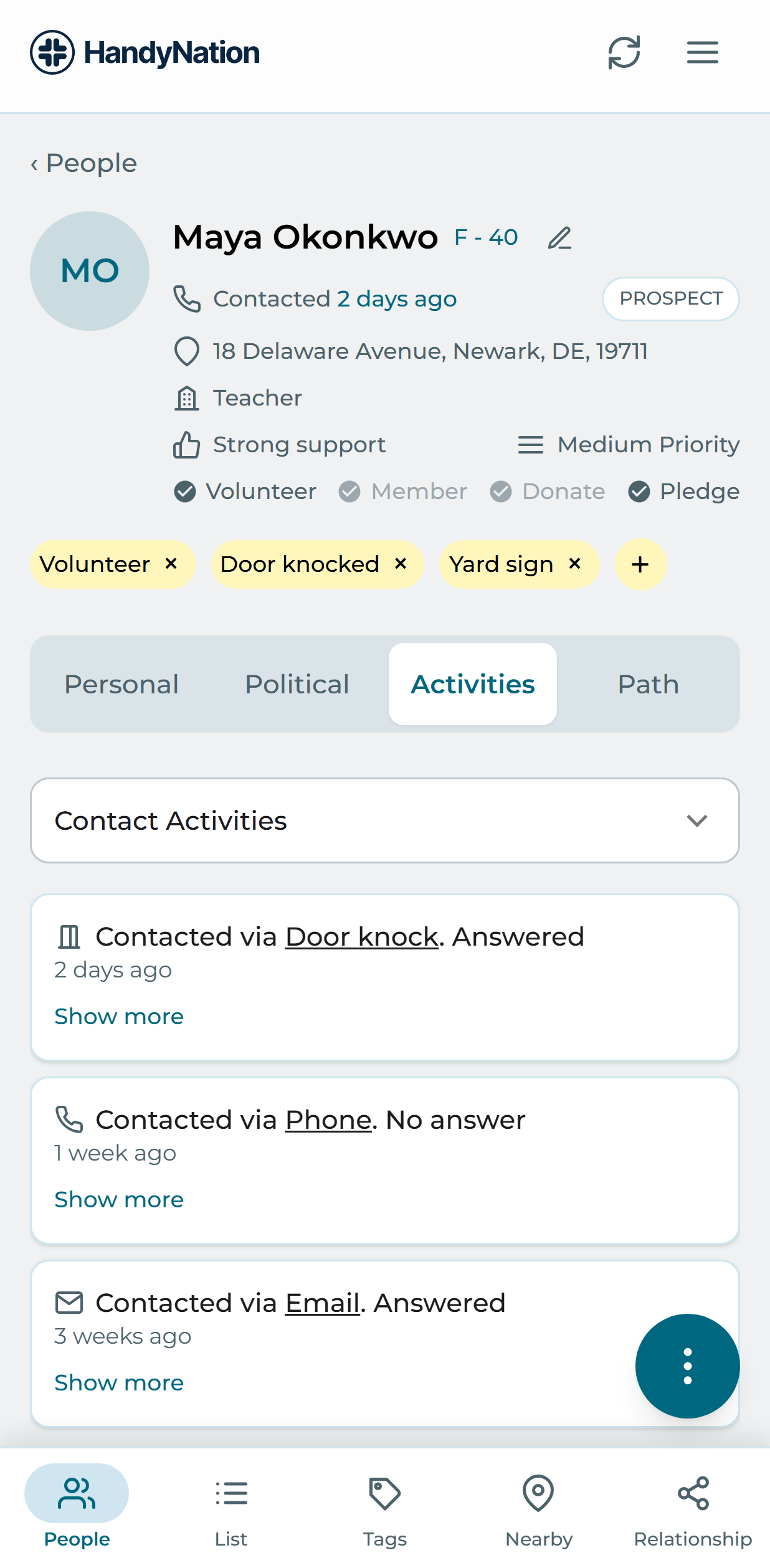
Show Activity Tab On Profile
Reveals the Activities tab on a person profile, then choose which histories appear inside it.
- Show Contacts Activities Every contact logged against this person.
- Show Survey Responses Every survey answered, with questions and responses.
- Show Donations This person’s donation history.
Miscellaneous
These all take something away. Leave them alone unless you specifically need to withhold information from a staffer.
- Hide address details Removes address information from the people list, the profile and the address section.
- Hide political tab on profile Removes the Political tab from person profiles.
- Hide membership details Removes membership information from person profiles.
- Hide donation details Removes donation information from person profiles.
- Hide Personal tab on profile Removes the Personal tab from person profiles.
- Hide ballots Removes the Ballots section from the Political tab.
- Hide Nearby Tab Removes the Nearby proximity tab.
- Hide Path Tab Removes the Path tab from person profiles.
- Disable export list Removes the CSV export action from list detail, so the staffer cannot mail themselves a copy of a list.
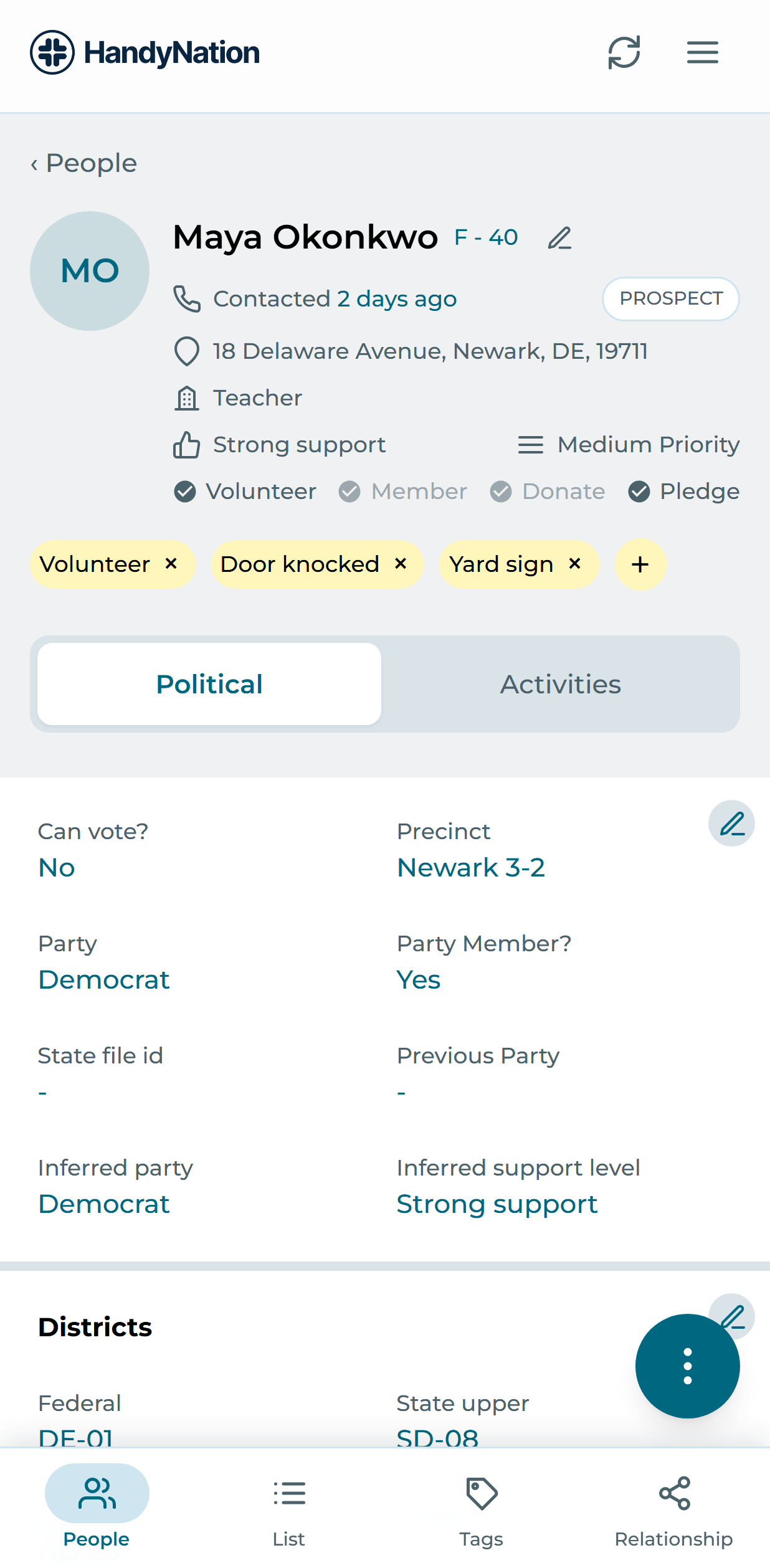
Show Relationship
A single toggle that reveals the Relationships tab, where a person’s connections to other people in your nation are shown.
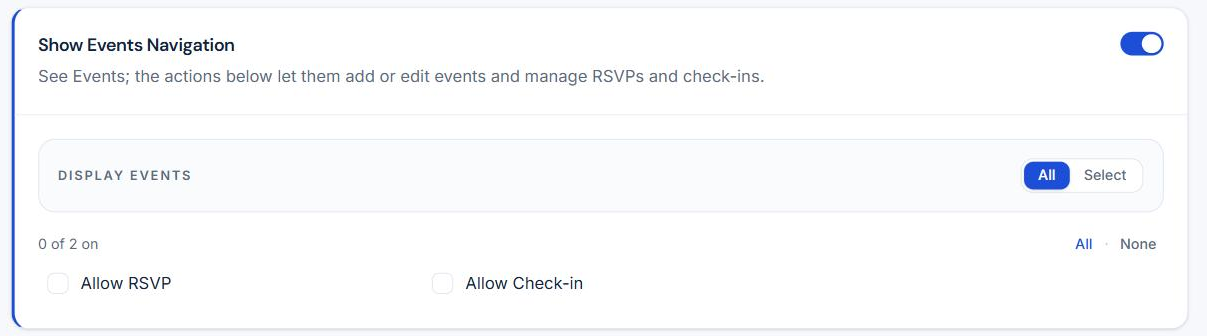
Show Events Navigation
Reveals the Events tab, scoped to all events or a selected set.
- Allow RSVP Lets the staffer add new RSVPs to the events they can see.
- Allow Check-in Lets the staffer check RSVPed attendees in on the day.
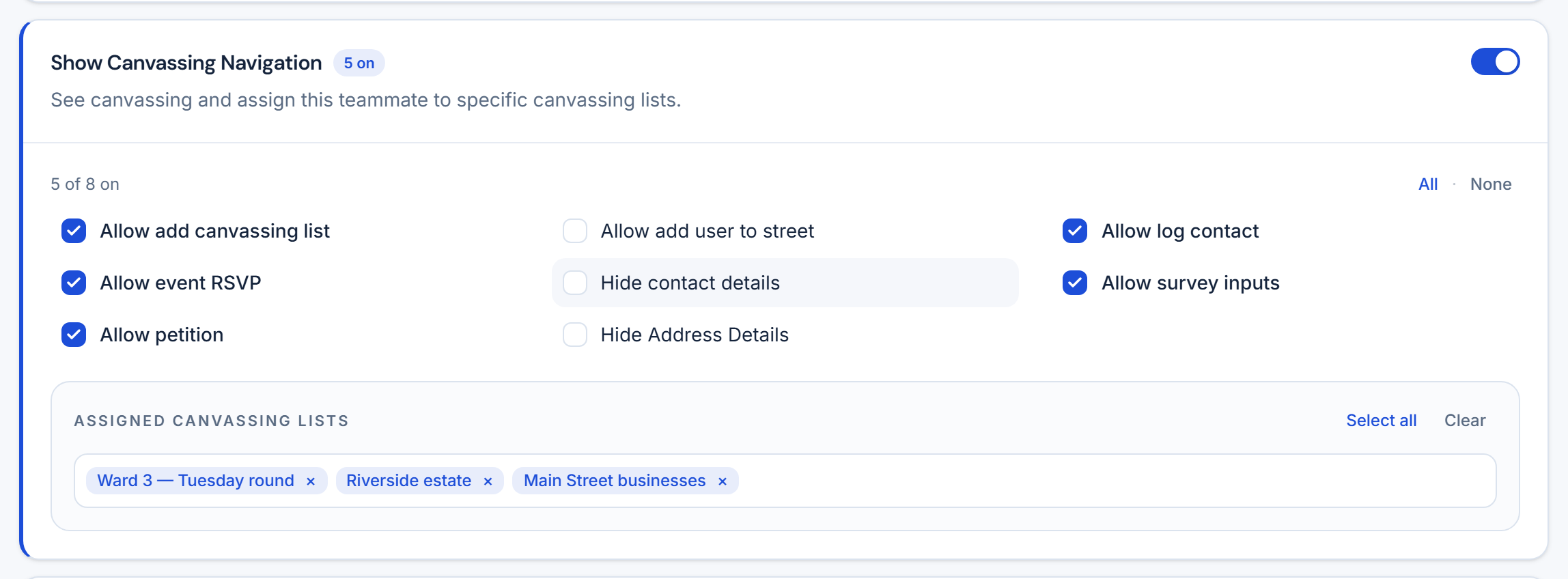
Show Canvassing Navigation
Reveals the Canvassing tab. Which lists a staffer can walk is not an all-or-selected scope — you assign them lists directly from the staff form or from the canvassing list itself, and the two stay in sync.
- Allow add canvassing list Reveals the create action on the Canvassing tab and on Nearby — the two places a canvassing list is created.
- Allow add user to street Lets the staffer add a person to a street while walking it. This is separate from list creation in v4; the legacy app gated both with one checkbox, so granting list creation quietly handed out street editing too.
- Allow log contact Lets the staffer record the result of a door during a canvass.
- Allow event RSVP Lets the staffer RSVP somebody from the log-contact screen while canvassing.
- Allow survey inputs Lets the staffer record a survey from the log-contact screen.
- Allow petition Lets the staffer collect a petition signature at the door.
- Hide contact details Withholds phone and email from the staffer while canvassing.
- Hide Address Details Withholds address detail during a canvass.
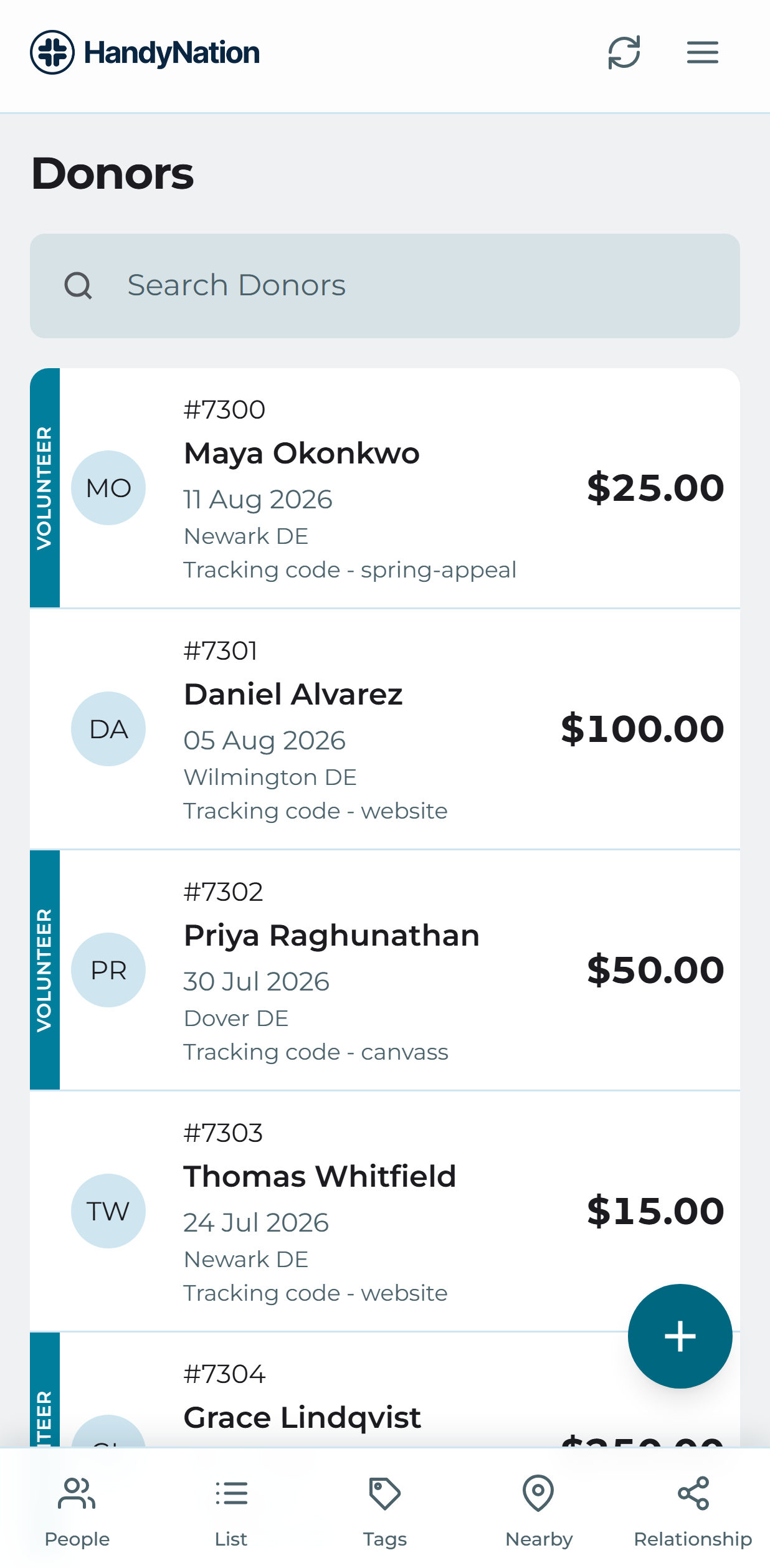
Show Donors Navigation
Reveals the Donors tab in the field app.
- Allow add new donor Lets the staffer log a new donation.