HandyNation
FeaturesPricingCustom AppDocsSupportPartnership
Log in
Docs/Team Setup
  • Getting Started

    • Account Setup & Installation
    • Manage Subscription
  • Team Setup

    • Manage team member
    • Team member login
    • Permission sets
  • CRM

    • Manage user record
    • Advanced search
    • Tag a user
    • NationBuilder Tags
    • NationBuilder list
    • User actions
    • Nearby (proximity list)
  • Canvassing

    • Create canvassing list
    • Canvassing on the field
  • Events

    • Events
    • QR based RSVP
  • Multi Language

    • Select app language
    • Customize language text
  • Donations

    • View Donations
    • Add donation
Field appUpdated on 14 August 2026

Team member login

Table of Contents

  1. Login to app

Login to app

Signing in as a staff member needs credentials your administrator creates for you. If you do not have them, ask them to add you under Team.

Once your profile exists you are emailed your login details.

Open the field app on your phone and sign in with the email address and password your administrator set for you. There is nothing else to enter — your nation is worked out from your email address.
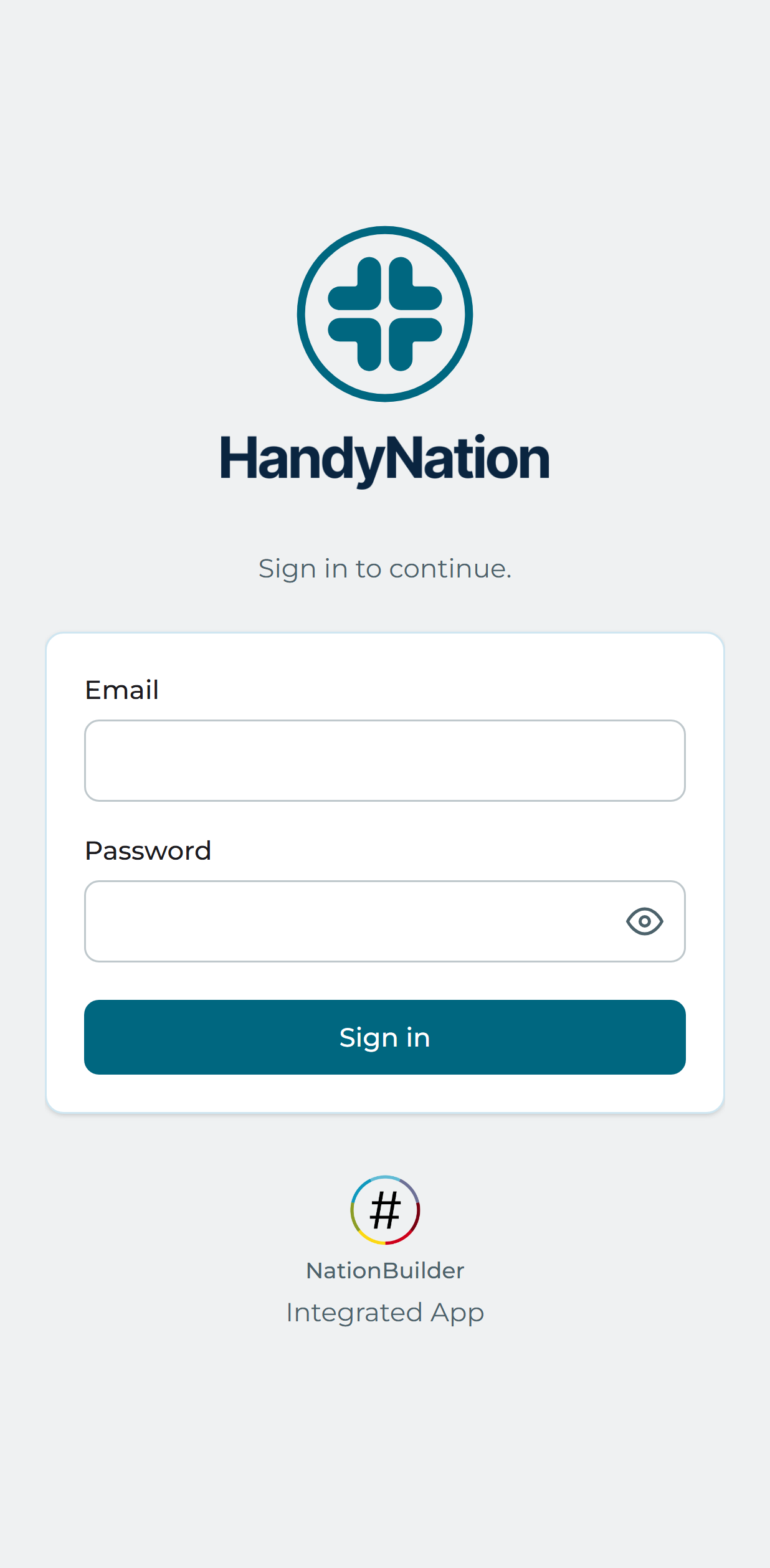
Signing in with an email address and password

Note: You will only see the parts of the app your administrator has granted you. If a tab you expect is missing, that is a permission, not a bug — ask them to review your permission set.

PreviousManage team memberNextPermission sets
HandyNation

HandyNation streamlines field operations — real-time sync, efficient canvassing, and customizable permissions — built for seamless NationBuilder integration.

Quick Links

  • Home
  • Features
  • Pricing
  • Custom App
  • Docs
  • Blog

Connect

  • Facebook
  • Twitter
  • Instagram
  • LinkedIn

Stay Updated

© 2026 HandyNation. All rights reserved.|
Privacy PolicyTerms of Services